Getting Started with the API
The CRF Exchange API enables your organization to programmatically access loan enrollment information, servicing, and associated documents for your entire loan portfolio. On the servicer side, it also allows you to upload loan packages and documents directly to the Exchange.
Getting API Access
Section titled “Getting API Access”To get started, You will first need to obtain an API key. You, or your tenant administrator, can create an API key by navigating to “Partner Details” on the left navigation menu, then selecting the “API Keys” tab. From there, you can create a new API key by clicking the “Create a New API Key” button.
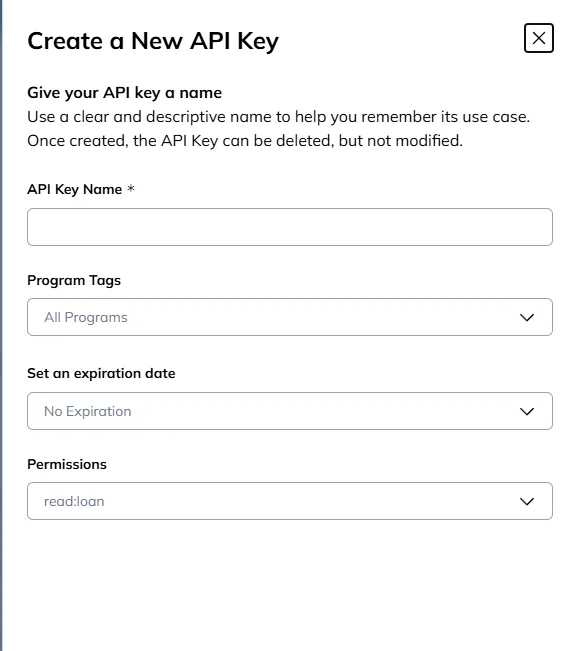
Once there, choose a meaningful API key name, and fill in the following options:
Program Tags
Section titled “Program Tags”By default all program tags that your tenant has access to will be enabled for your API key. If you would like to restrict access to specific program tags, you can do so by selecting the desired tags from the dropdown.
Expiration Date
Section titled “Expiration Date”You can optionally set an expiration date for your API key. If no expiration date is set, the API key will remain valid until manually revoked.
Permissions
Section titled “Permissions”By default each API key will be granted access to read loan information, however, you can use this dropdown to select from the following permissions:
read:loan: Grants read access to loan information and PII.read:loandocuments: Grants read access to download loan documents.write:loanevents: Grants write access to upload loan events and documents.
After you’ve configured the appropriate settings click the “Generate Key” button, you will then see your newly created API key. Be sure to copy and securely store the API key, as it will not be shown again. Another important thing to copy down is the Partner ID for your tenant, which is shown on the same screen. The Partner ID will be visible at all times from the “Partner Details” page. Pretty much every request to the Exhange API will involve both your Partner ID and your API key.
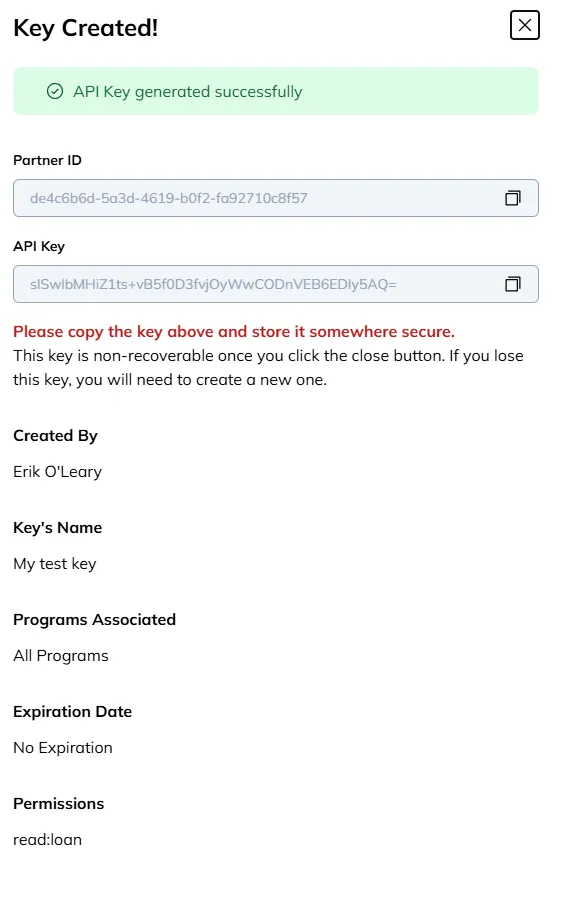
After you dismiss this dialog, you will be able to see all the API keys your tenant has, what their permissions are, when they expire, and optionally regenerate the API key, which will invalidate the previous key and display a new one, as well as push the expiration date further into the future.
Using your API key
Section titled “Using your API key”Your API key should be kept secret, and not shared with anyone outside of your organization. When making requests to the Exchange API, include your API key in the x-api-key header of your HTTP requests, like so:
curl -H "x-api-key: {your-api-key}" https://exchange.crfusa.com/api/loan?partnerId={your-partner-id}&loanId={your-loan-id}Next Steps
Section titled “Next Steps”Now that you have your API key created you can start integrating with CRF Exchange. See the sidebar to the left for common integration topics.